Email Configuration
Setup your SunStar Media email box for iOS (iPhone, iPad or iPod Touch)
Here are step-by-step instructions for setting up your email box on Apple iOS (iPhone, iPad or iPod Touch).
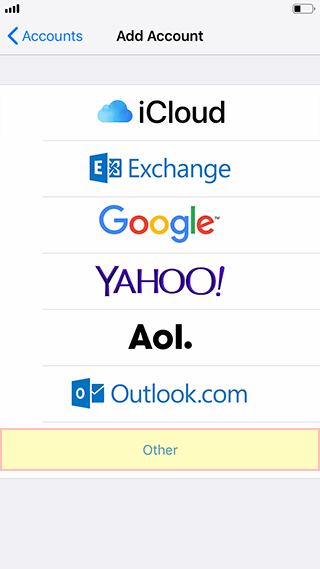
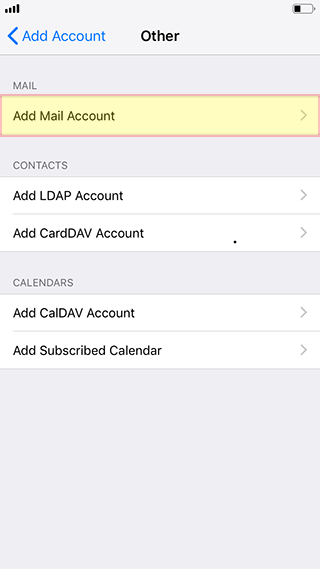
1.) Go to the Home Screen, select "Settings", then select "Passwords & Accounts". Choose "Add Account", and select "Other", then "Add Mail Account".

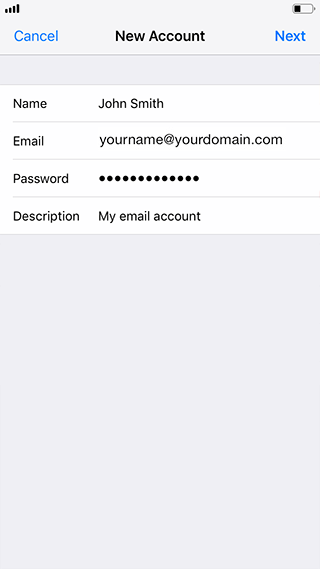
2.) Enter your User information, and click "Save".
- Name: Your Full Name
- Email: Your Email Address
- Password: Your assigned Password
- Description Your own description of the account.
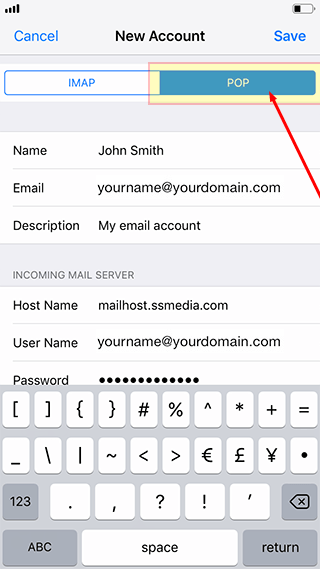
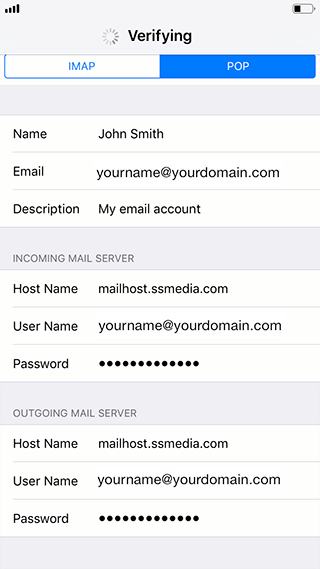
3.) On the next pane, make sure "POP" is selected (NOT "IMAP"), then scroll down to enter the mail server information:
- Incoming Mail Server:
- Host Name: mailhost.ssmedia.com
- User Name: Your full Email Address
- Password: Your assigned Email Password
- Outgoing Mail Server:
- Host Name: mailhost.ssmedia.com
- User Name: Your full Email Address
- Password: Your assigned Email Password
Click "Save". You should see the "Verifying" message for a few moments.
4.) You should now see your POP3 mailbox account listed and be able to send and receive using the native iOS "Mail" app.
If you receive any errors, please double-check to ensure your email address and password are exact.
If you have any additional questions about how to set up your SunStar Media email account, please contact us.
The SunStar Media team