Email Configuration
Setup your SunStar Media email account for Gmail (using "Mail Fetcher")
Here are step-by-step instructions for setting up your SunStar Media POP3 email box using Gmail, using Google's "Mail Fetcher" feature.
The Gmail help document detailing this feature can be viewed here:
https://support.google.com/mail/answer/21289?rd=1
1.) Log-in to Gmail, and go to "Settings | Mail Settings" (the "Gear" icon near the top-right corner of page after logging-in to Gmail).
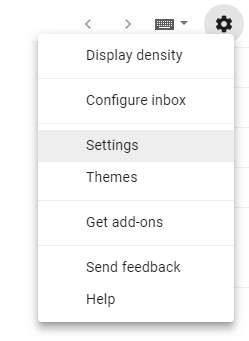
- Click "Accounts and Import".
2.) Under "Check mail from other accounts", click "Add a mail account".

3.) Enter the email address of the account to get mail from.
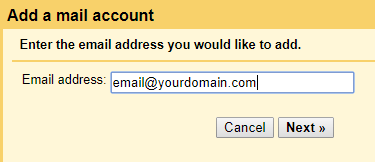
- Enter your full SunStar Media-hosted Email Address. Click "Next Step".
4.) Enter the mail settings for (your SunStar Media-hosted Email Address:
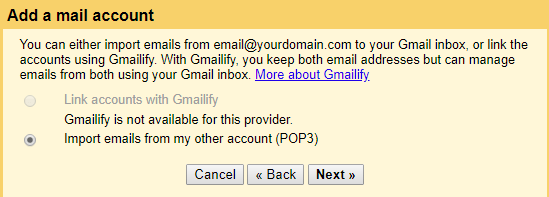
- [X] Import emails from my other account (POP3)
- Click "Next".
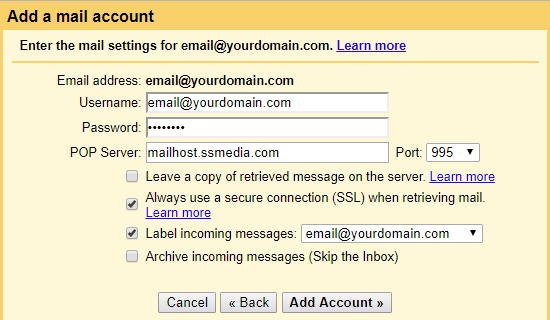
- Email Address:Your SunStar Media-hosted Email Address
- Password: Your Email Password
- POP Server: mailhost.ssmedia.com, Port: 995
- [X] Always use a secure connection (SSL) when retrieving mail.
- [X] Label incoming messages: (your email address)
- Click "Add Account".
5.) Your mail account has been added.
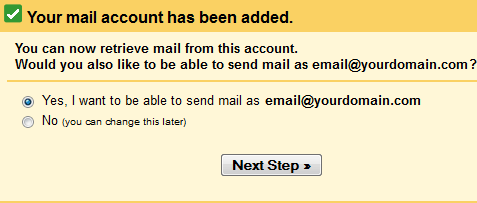
- [X] Yes, I want to be able to send mail as (Your Email Address).
- Click "Next Step".
6.) Enter information about your other email address.
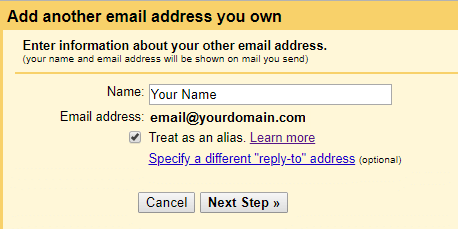
- Name:Your Name
- [X] Treat as an alias.
- Click "Next Step".
7.) Send mail through your SMTP server?
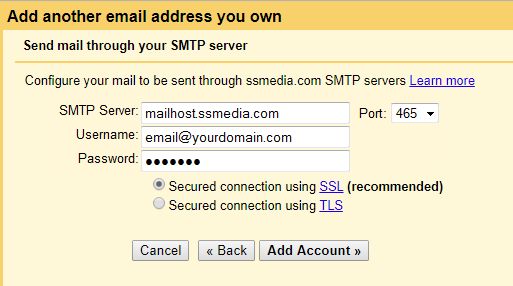
- [X] Send through ssmedia.com SMTP servers
- SMTP Server: mailhost.ssmedia.com, Port: 465
- Username: (Your SunStar Media-hosted Email Address)
- Password: Your Email Password
- [X] Secured connection using SSL
- Click "Add Account".
- Gmail will then check the credentials.
8.) Confirm verification and add your email address.
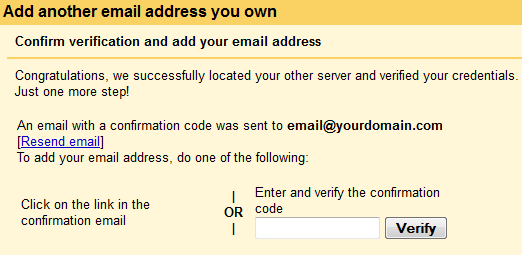
- Gmail will send a verification code to your SunStar Media-hosted Email Address.
- If you've already configured your mobile phone, you can use it to receive the message and view the code.
- If needed, go to http://mailhost.ssmedia.com and log-in to the Web Mail site to retrieve your Verification code.
- Enter the code that you receive.
- Click "Verify".
9.) Congratulations. You have successfully entered all the information required setup your account.
If you have any additional questions about how to set up your SunStar Media email account, please contact us.
The SunStar Media team