Email Configuration
Setup your SunStar Media email account for Microsoft Outlook 365
Here are step-by-step instructions for setting up your email box using newer versions of Microsoft Outlook such as Outlook 365.
Note: These instructions are for "Classic Outlook" and not "New Outlook". For POP3 accounts, it is highly recommended that you switch to "Classic Outlook", using the below steps:
- In the New Outlook window, find the "New Outlook" toggle in the top-right corner.
- Toggle it OFF. The application will prompt you to switch back to the classic version.
- Note - If the option is not present in the top-right corner, open the "Help" tab (drop-down), and then choose "Go to Classic Outlook" from the menu.
- Once the classic application is open, add your account via File > Add Account and use the "Manual setup or additional server types" option.
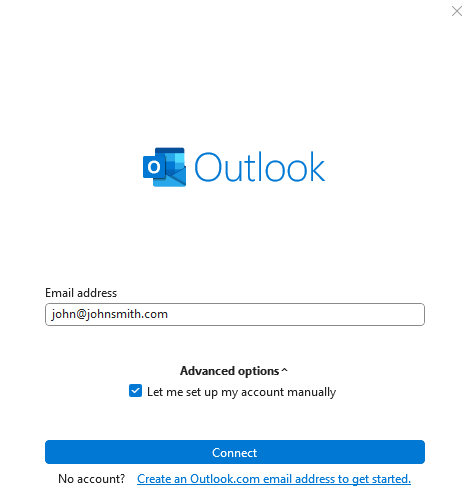
1.) Open Outlook, and go to "File | Add Account".
- Enter your Email address
- Check "Let me set up my account manually"
- Click "Connect".
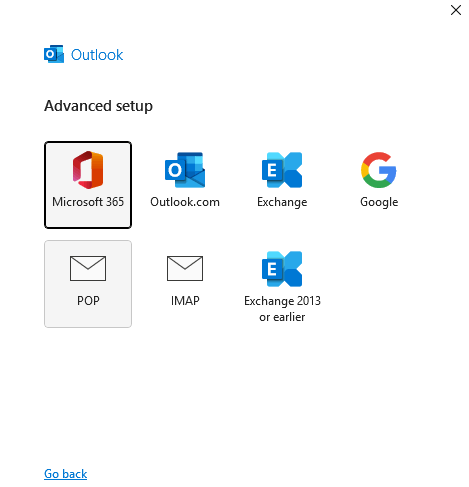
2.) Click the "POP" button/icon.
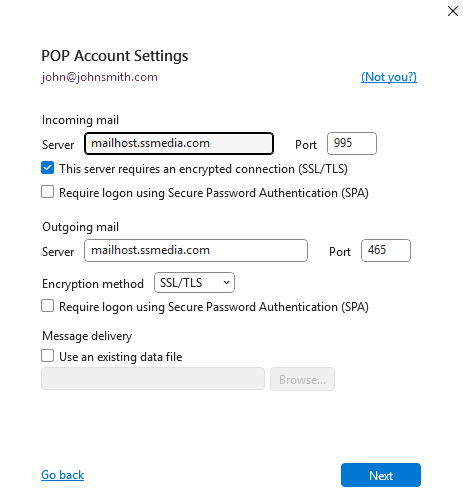
3.) Enter your basic user information.
- Incoming mail:
- Server: mailhost.ssmedia.com
- Port: 995
- Check "This server requires an encrypted connection (SSL/TLS)
- Outgoing mail:
- Server: mailhost.ssmedia.com
- Port: 465
- Encryption method: SSL/TLS
- Click "Next".
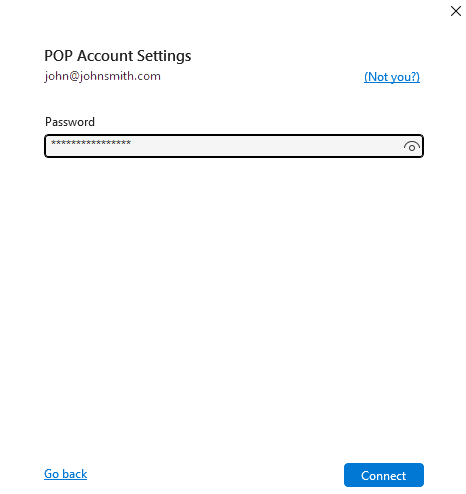
4.) POP Account Settings
- Enter your Password
- Click "Connect".
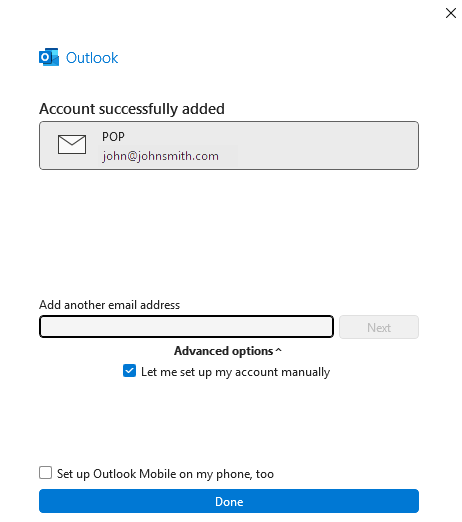
5.) Account successfully added
- You should see the below screen
- Click "Done".
If you have any additional questions about how to set up your SunStar Media email account, please contact us.
The SunStar Media team