Email Configuration
Setup your SunStar Media email account for Microsoft Outlook 2013-2019
Here are step-by-step instructions for setting up your email box using Microsoft Outlook 2013-2019.
1.) Open Outlook, and go to "File | Add Account".
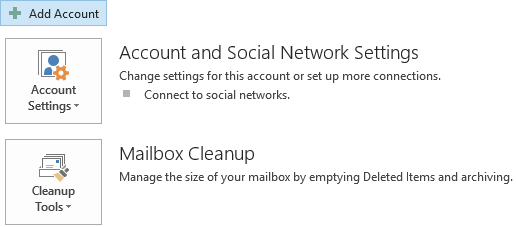
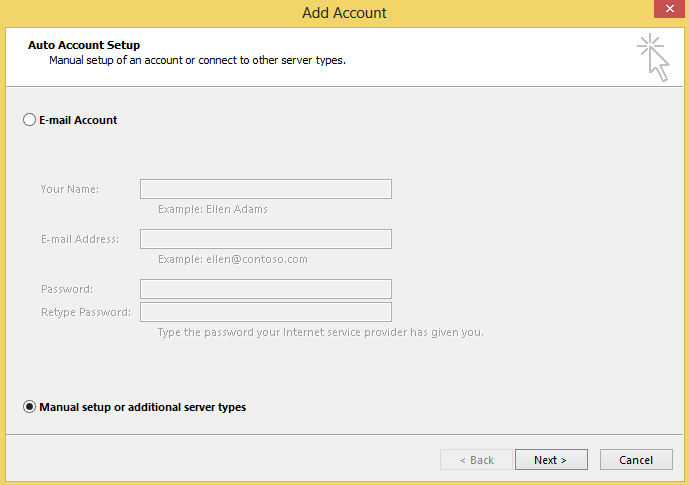
2.) Select "Manual setup or additional server types.", then "Next."
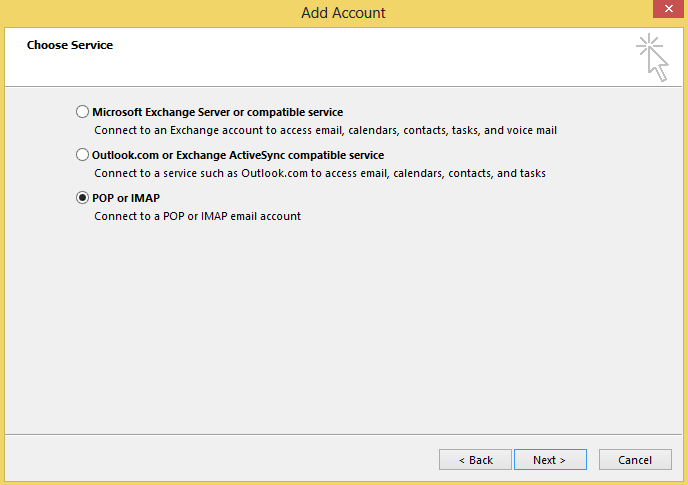
3.) Under "Choose Service", select "POP or IMAP", then "Next."
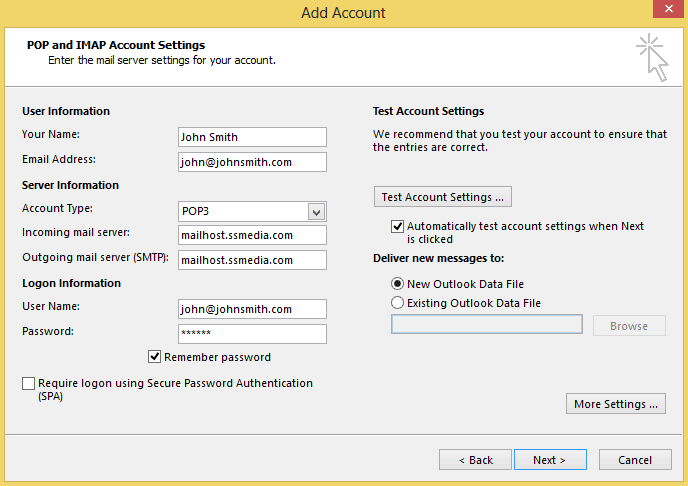
4.) Enter your basic user information.
- User Information:
- Your Name: Your Full Name
- Email Address: Your Email Address
- Server Information:
- Account Type: POP3
- Incoming mail server: mailhost.ssmedia.com
- Outgoing mail server: mailhost.ssmedia.com
- Logon Information
- User Name: Your Email Address
- Password: Your Email Password
- Click "More Settings".
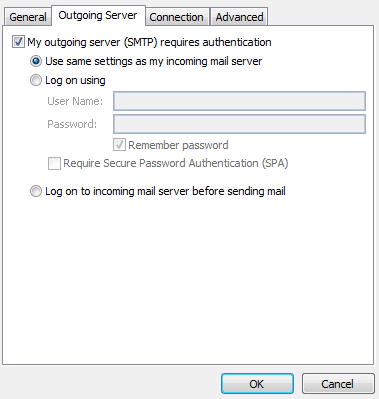
5.) Enable SMTP Authentication on the "Outgoing Server" tab.
- Choose the "Outgoing Server" tab.
- Select the checkbox next to "My outgoing server (SMTP) requires authentication".
- Choose "Use same settings as my incoming server"
- Then, choose the "Advanced" tab.
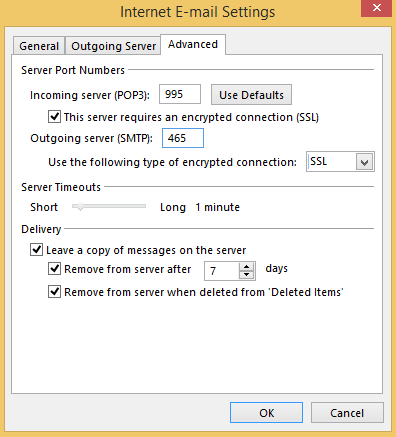
6.) Change the Outgoing server (SMTP) port and adjust Delivery settings on the "Advanced" tab.
- The Incoming mail (POP3) must be changed to port 995.
- Check "This server requires an encrypted connection (SSL)"
- The Outgoing mail (SMTP) must be changed to port 465.
- Under "Use the following type of encrypted connection, select "SSL"
- Under "Delivery":
- Check "Leave a copy of messages on the server".
- This will leave email messages on the POP server instead of deleting them immediately. This is especially useful if using more than one email client, our Web Mail site or mobile devices such as an iPhone.
- Check "Remove from server after [ ] days". (We recommend entering "7" for the number of days.)
- Check "Remove from server when deleted from 'Deleted Items'".
- This will remove deleted mail (including spam) from your email box.
- Check "Leave a copy of messages on the server".
- Click "OK".
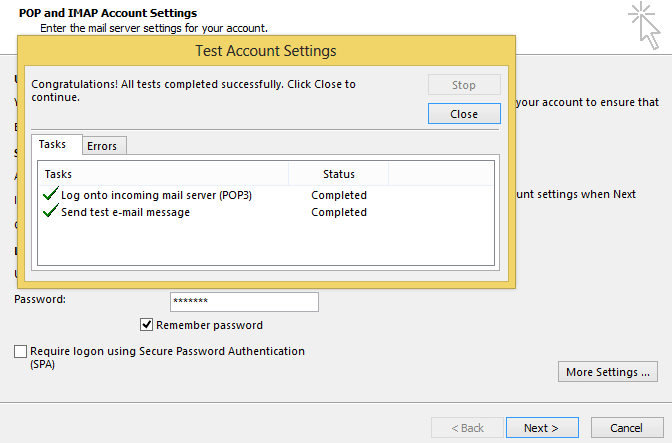
7.) After your successful tests, you're account is complete. Choose "Close", then "Next" (or "Finished").

If you have any additional questions about how to set up your SunStar Media email account, please contact us.
The SunStar Media team